1
Click 'Build site' in the content creation panel to open HubSpot's website builder where you can add Hero blocks and edit their heading text.
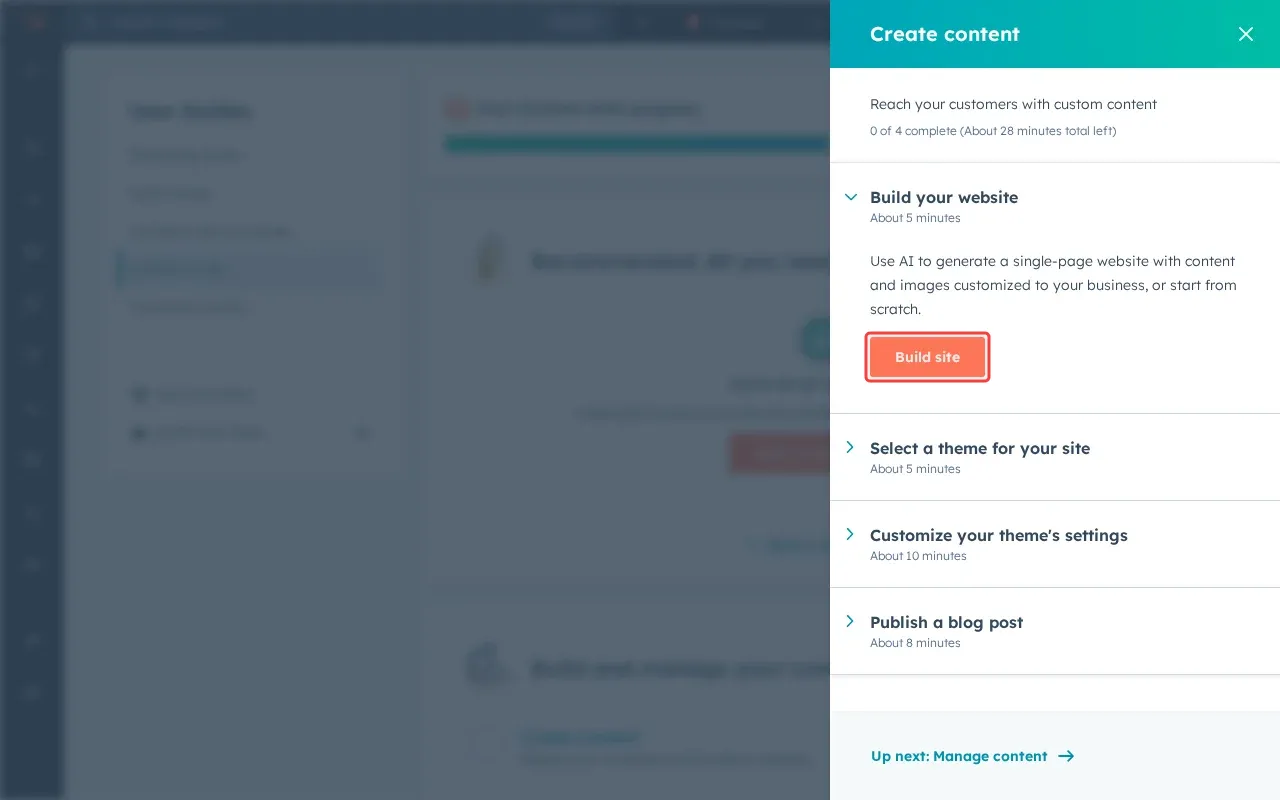
Step 1: Click the 'Build site' button in the content creation panel to open HubSpot's website builder where you can add Hero blocks and edit their heading text. This will launch the drag-and-drop website editor.
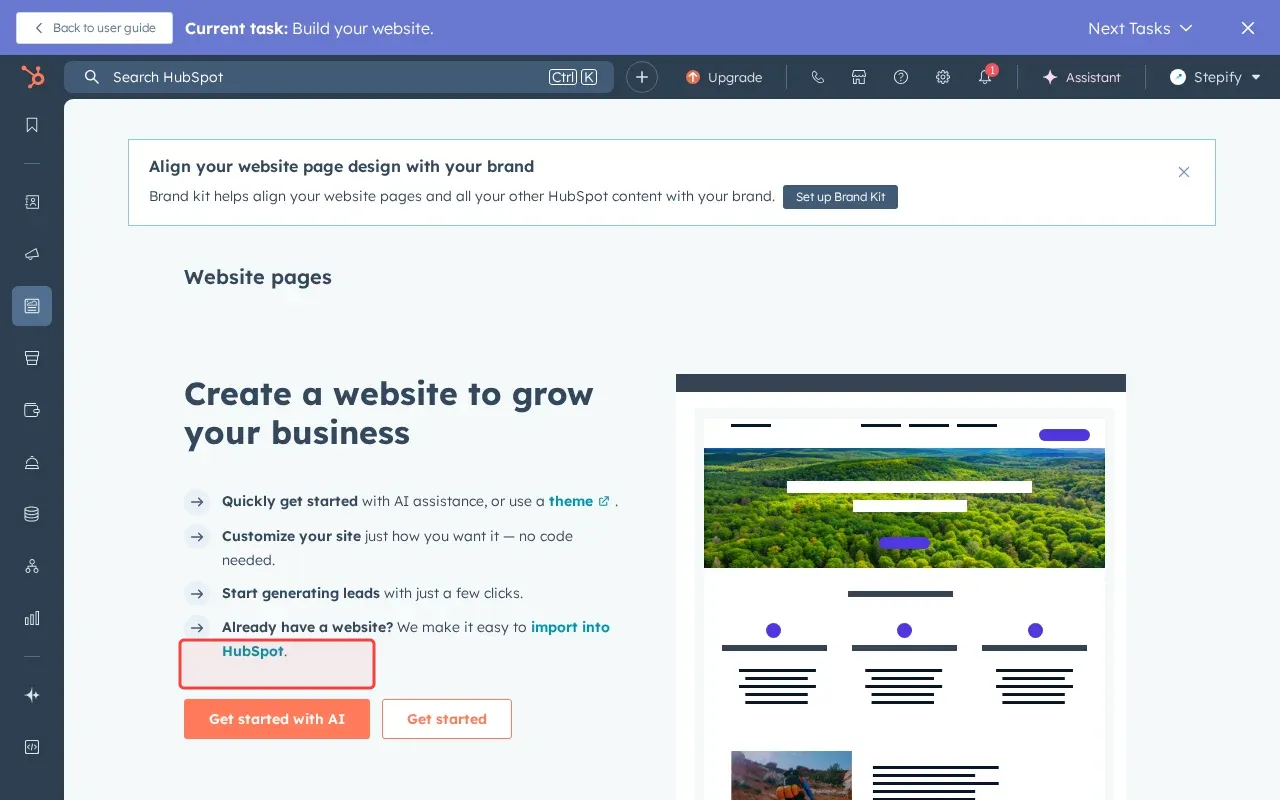
Step 2: Click the orange 'Get started with AI' button to launch HubSpot's AI-assisted website builder. This will create a new website project where you can add and edit Hero blocks with compelling heading text.
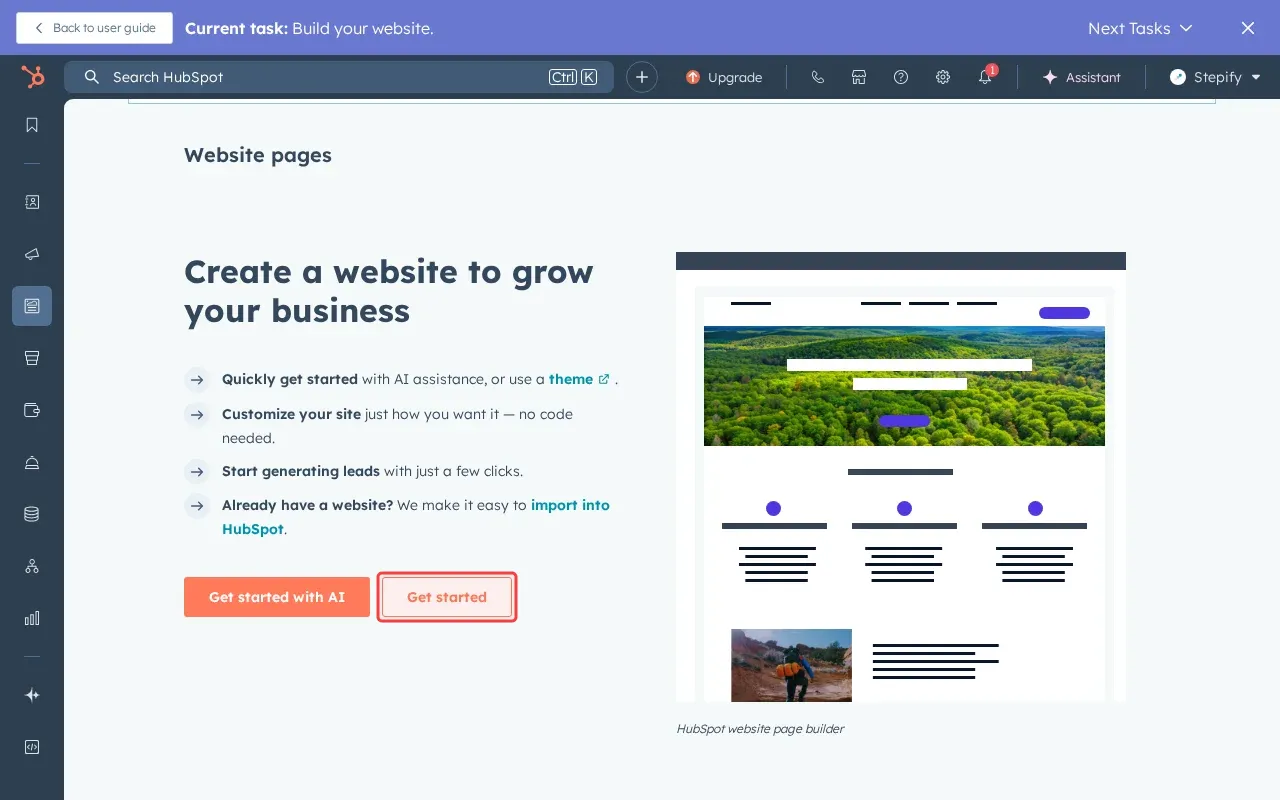
Step 3: Click the 'Get started' button to launch HubSpot's standard website builder interface. This will open the website editor where you can find and edit Features blocks that have already been added to your page.
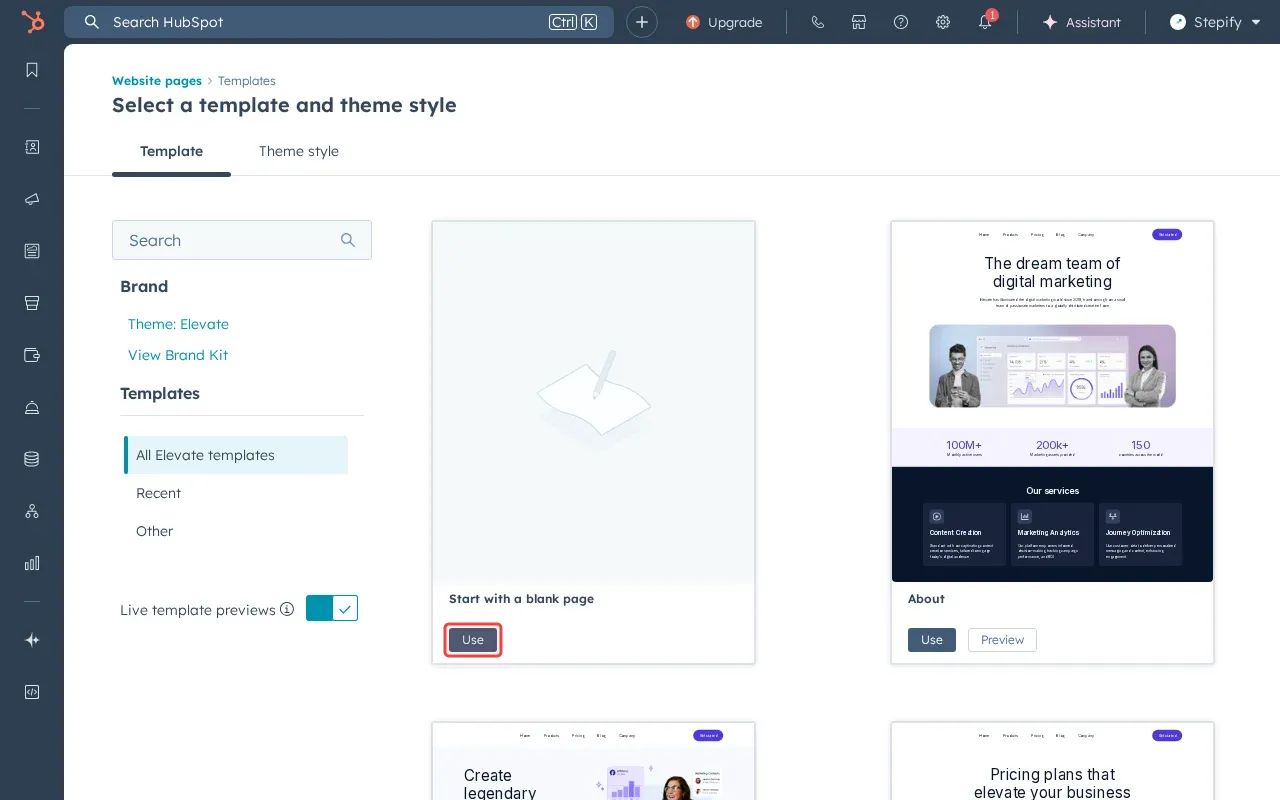
Step 4: Click the 'Use' button under 'Start with a blank page' to create a new blank webpage. This will open HubSpot's page editor where you can add and edit Features blocks with custom titles and descriptions.