make

How to create a new scenario that watches for new emails and sends a Slack notification in Make

4 steps 41s 08/03/2026 22:01 8 views
0:00 / 0:00

Transcript

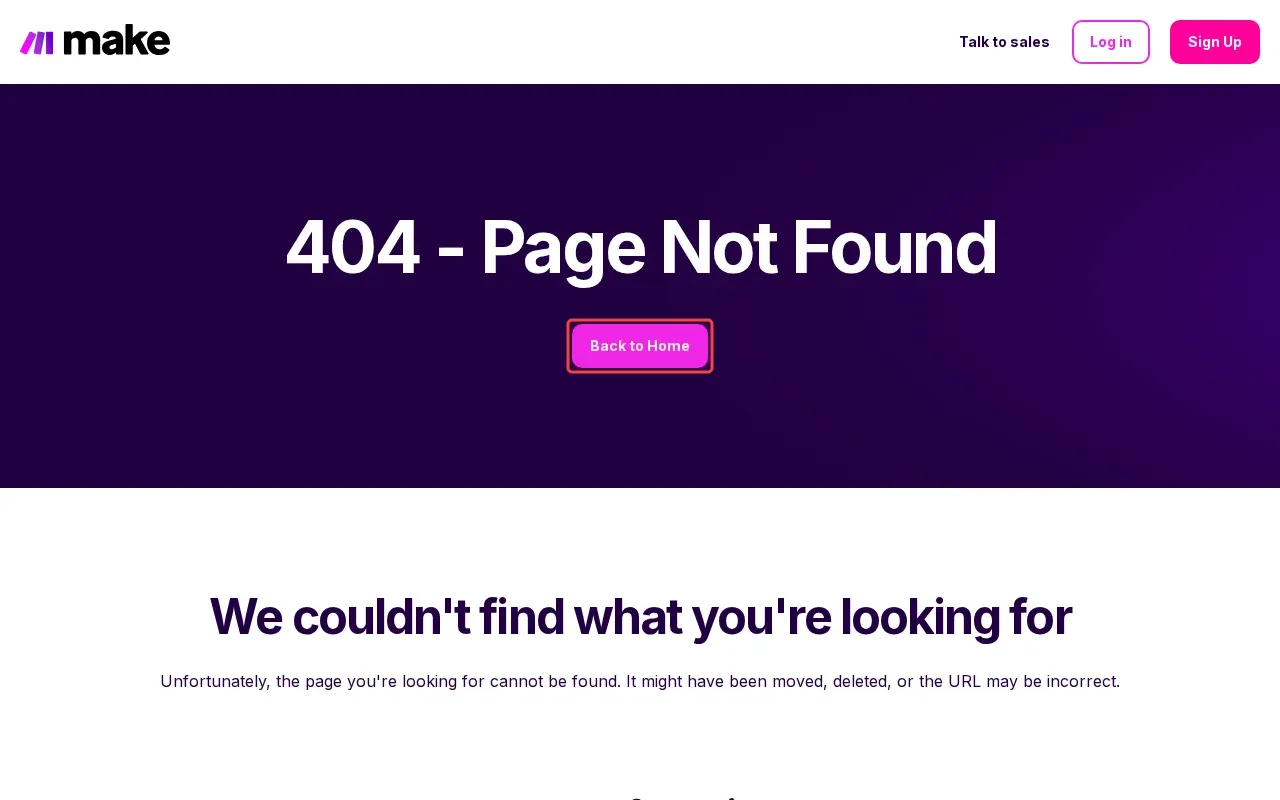
Step 1: Click the 'Back to Home' button to navigate away from this 404 error page and return to the website builder interface where Hero blocks can be added and edited.
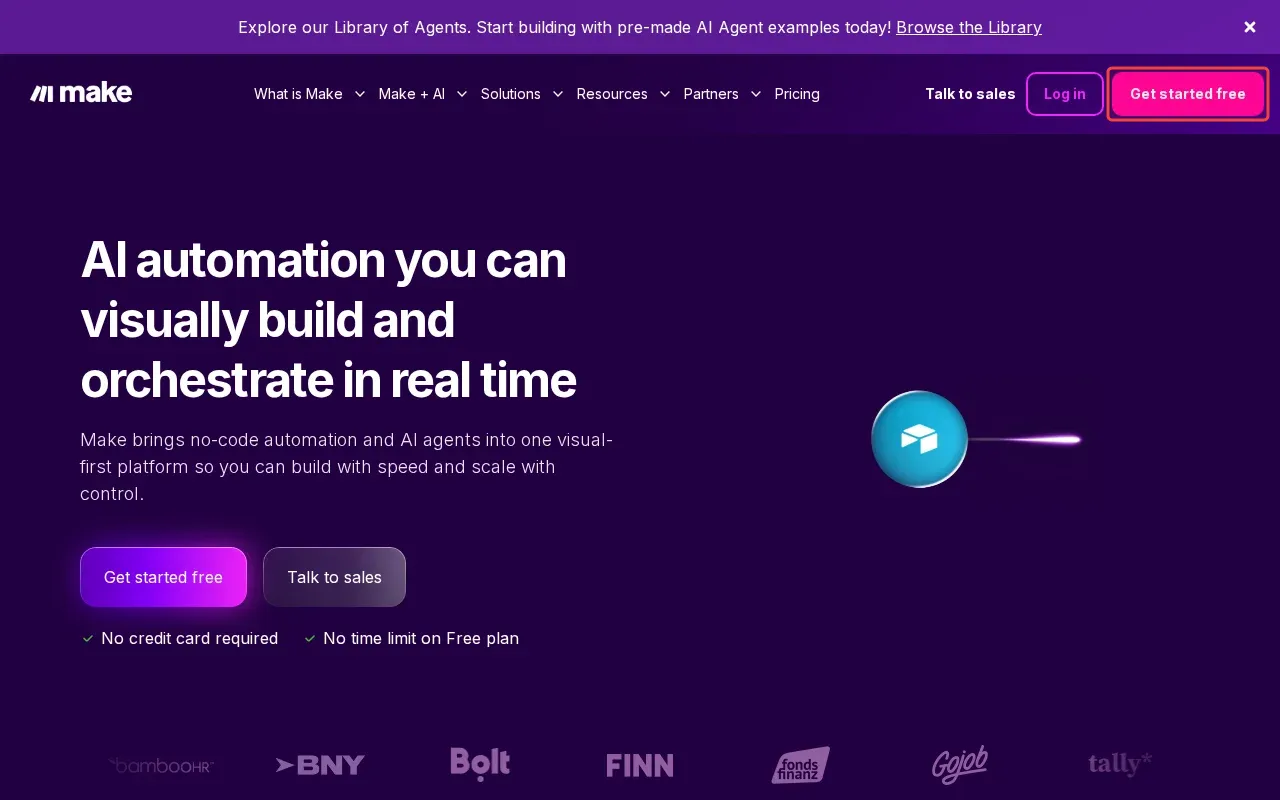
Step 2: Click the 'Get started free' button in the top-right corner of the page to access the website builder where Hero blocks can be added and edited. This will take you to the platform where you can create and modify content blocks for your automation tutorial.

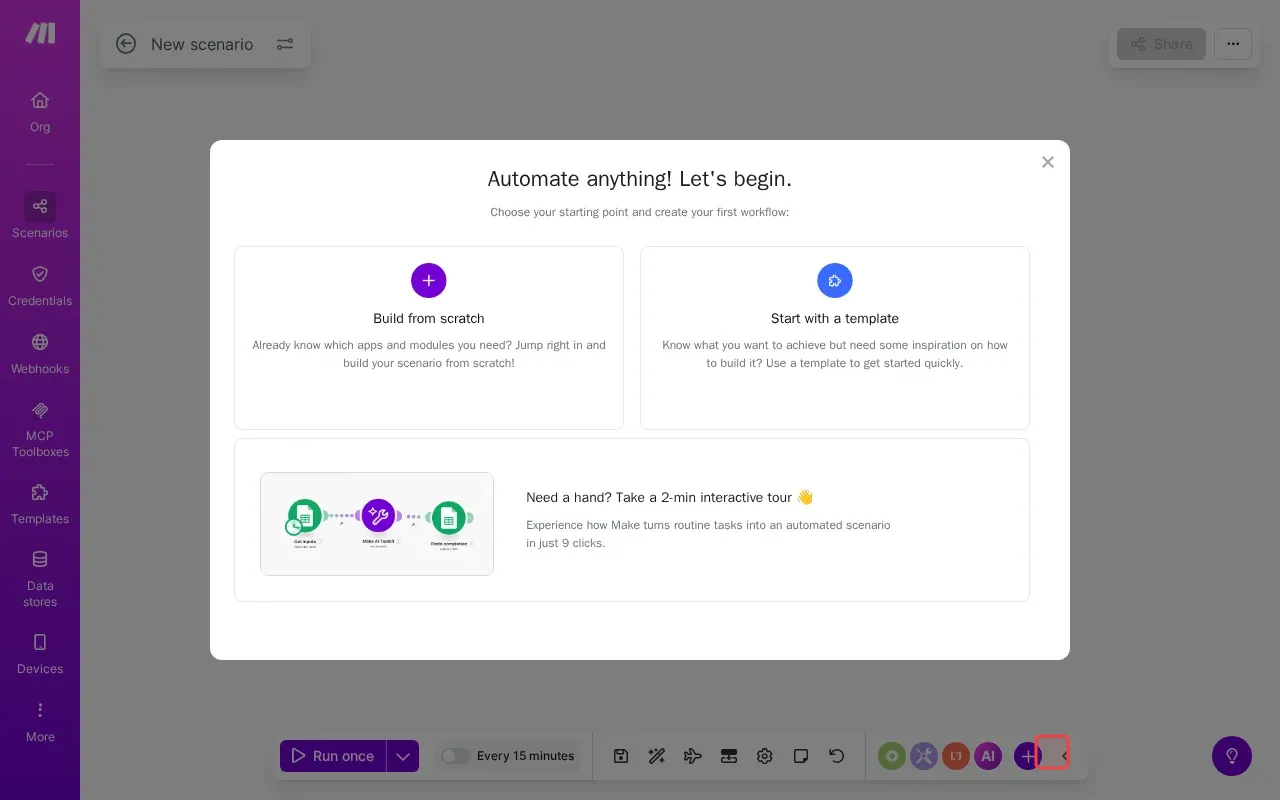
Step 3: Click the X (close) button in the top-right corner of the 'Automate anything! Let's begin.' modal to close this onboarding dialog and return to the main Make interface. The X button is located at the upper-right of the white modal overlay.

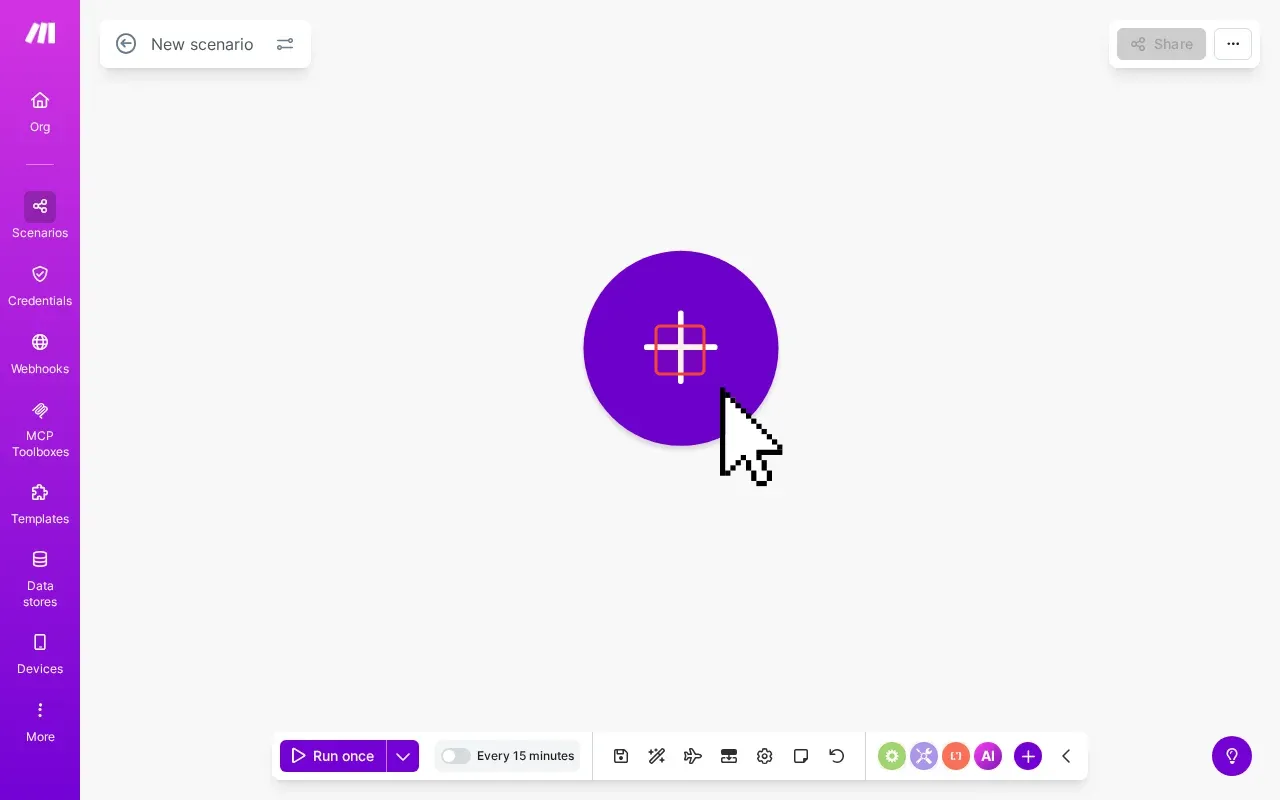
Step 4: Click the large purple plus (+) button in the center of the canvas to open the module selection interface. This circular button will open a panel where you can choose from various apps and services to add to your automation scenario.
Step-by-Step Guide

1

Click 'Back to Home' to navigate away from this 404 error page and return to the website builder interface where Hero blocks can be added and edited.

Screenshot showing clicking Back to Home to navigate away from this 404 error page and return to the website builder interface where Hero blocks can be added and edited
2

Click 'Get started free' in the top-right corner of the page to access the website builder where Hero blocks can be added and edited.

Screenshot showing clicking Get started free in the top-right corner of the page to access the website builder where Hero blocks can be added and edited
3

Click the X (close) button in the top-right corner of 'Automate anything! Let's begin.' modal to close this onboarding dialog and return to the main Make interface. The X button is located at the upper-right of the white modal overlay.

Screenshot showing clicking the X (close) button in the top-right corner of Automate anything! Lets begin. modal to close this onboarding dialog and return to the main
4

Click the large purple plus (+) button in the center of the canvas to open the module selection interface.

Screenshot showing clicking the large purple plus (+) button in the center of the canvas to open the module selection interface