ga4

How to analyse Pages and screens in Google Analytics

9 steps 1m 22s 20/02/2026 17:08 4 views
0:00 / 0:00

Transcript

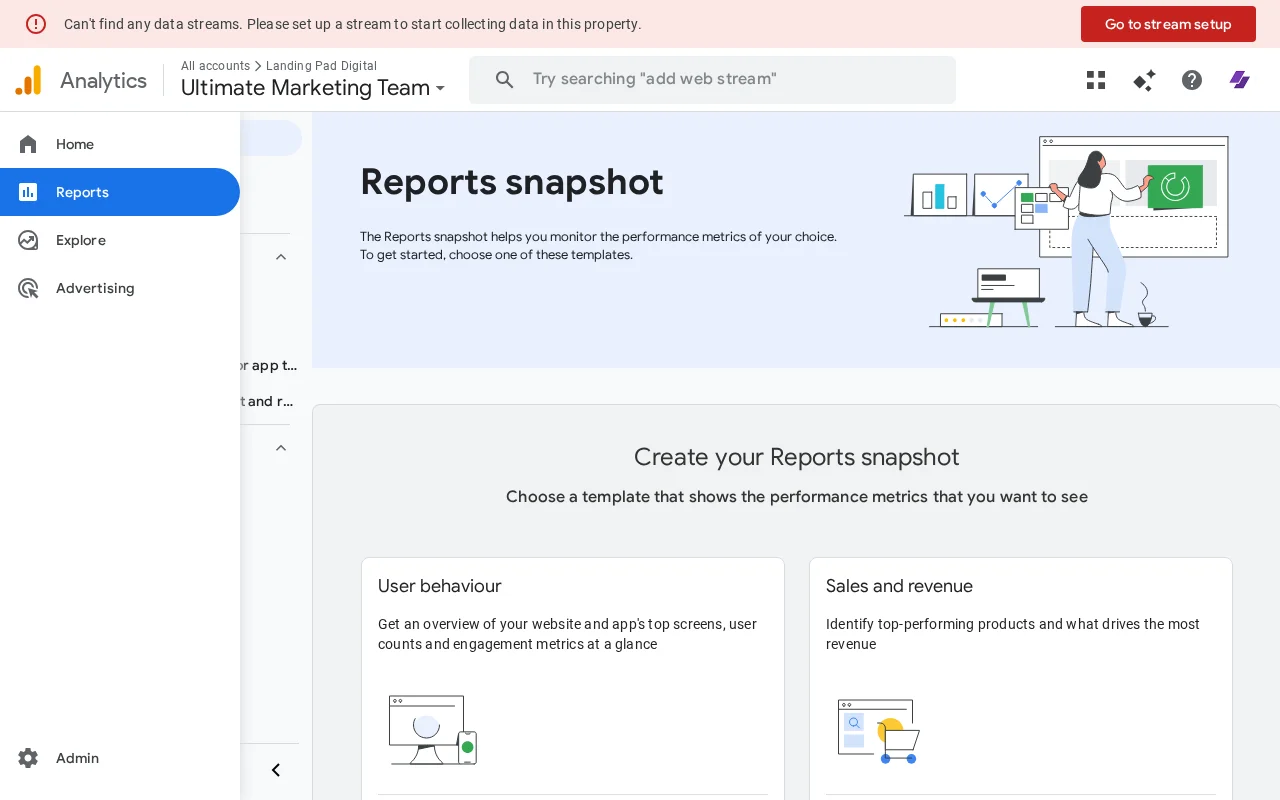
Step 1: Click 'Reports' in the sidebar to access analytics reports.

Step 2: Click 'User' to expand user behavior reports section.

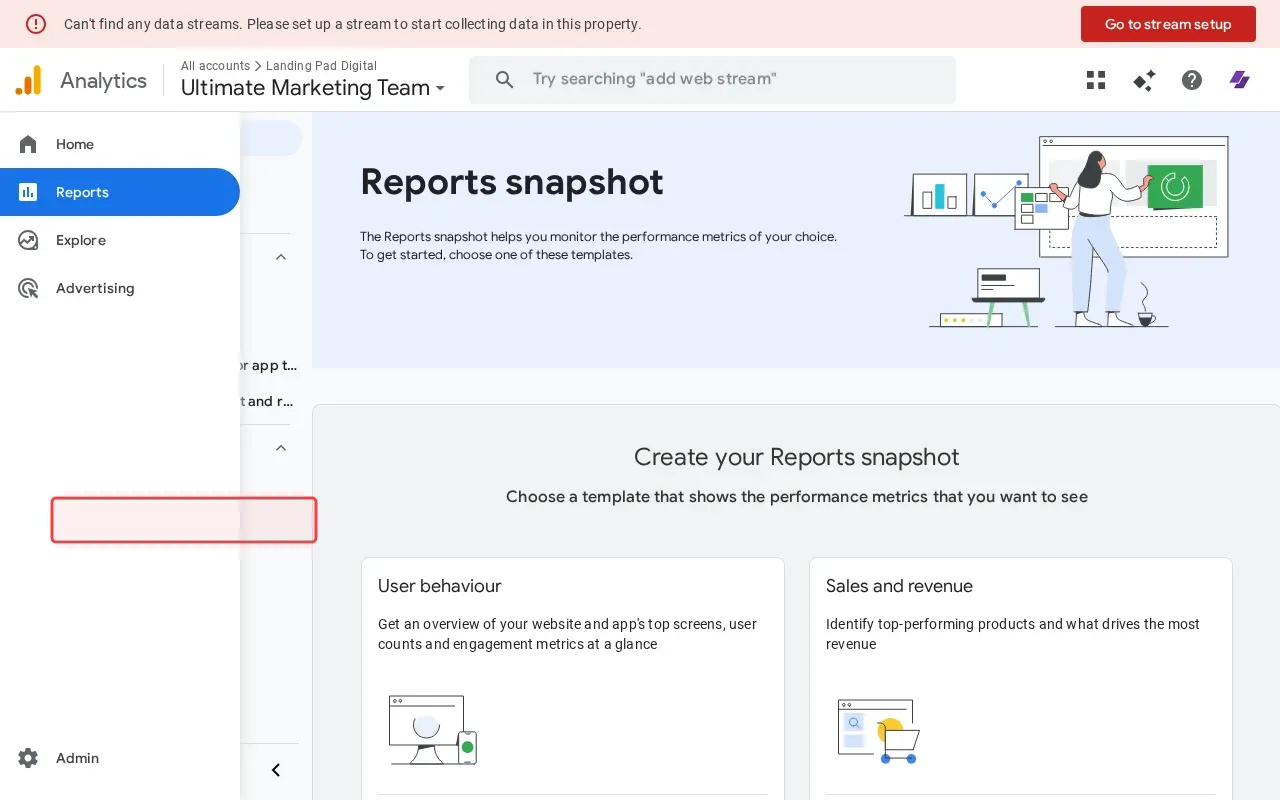
Step 3: Scroll down to find Pages and screens reports option.

Step 4: Click 'Tech' to explore page and screen analytics.

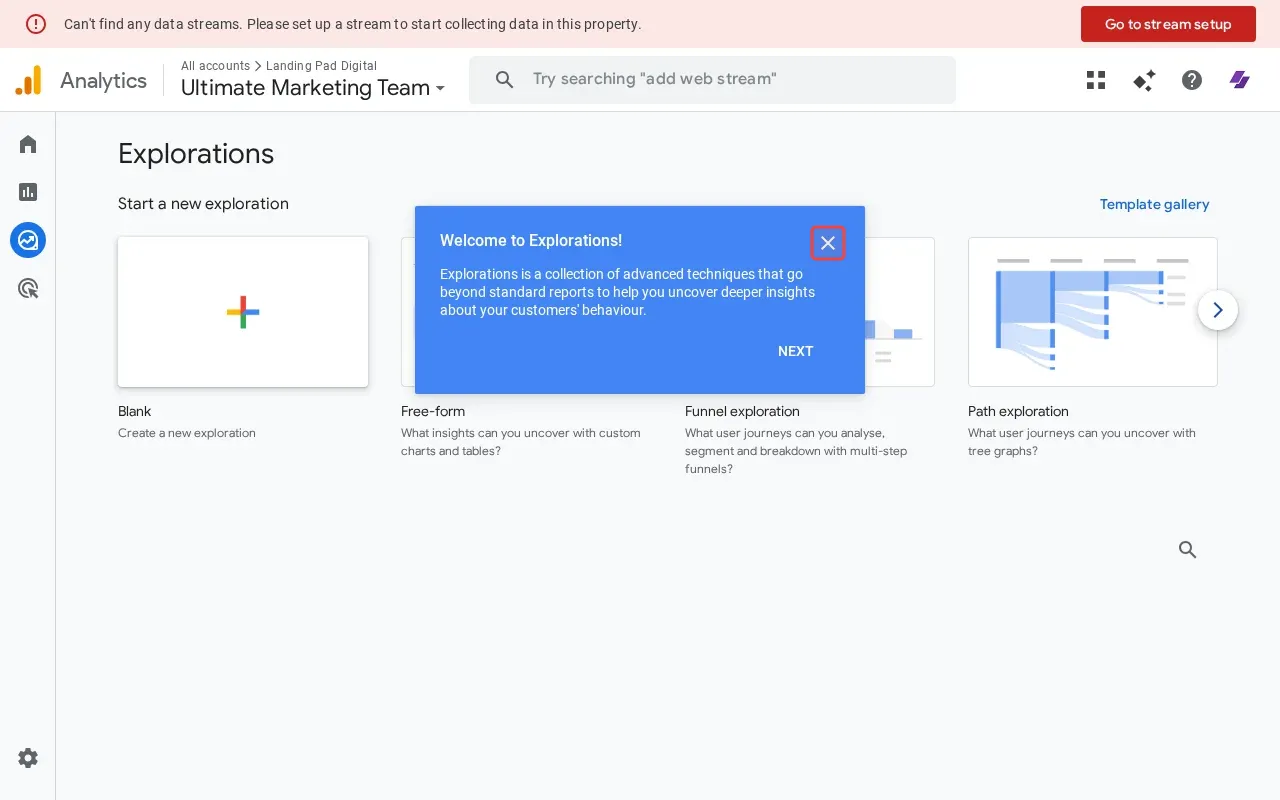
Step 5: Close the welcome modal to access explorations.

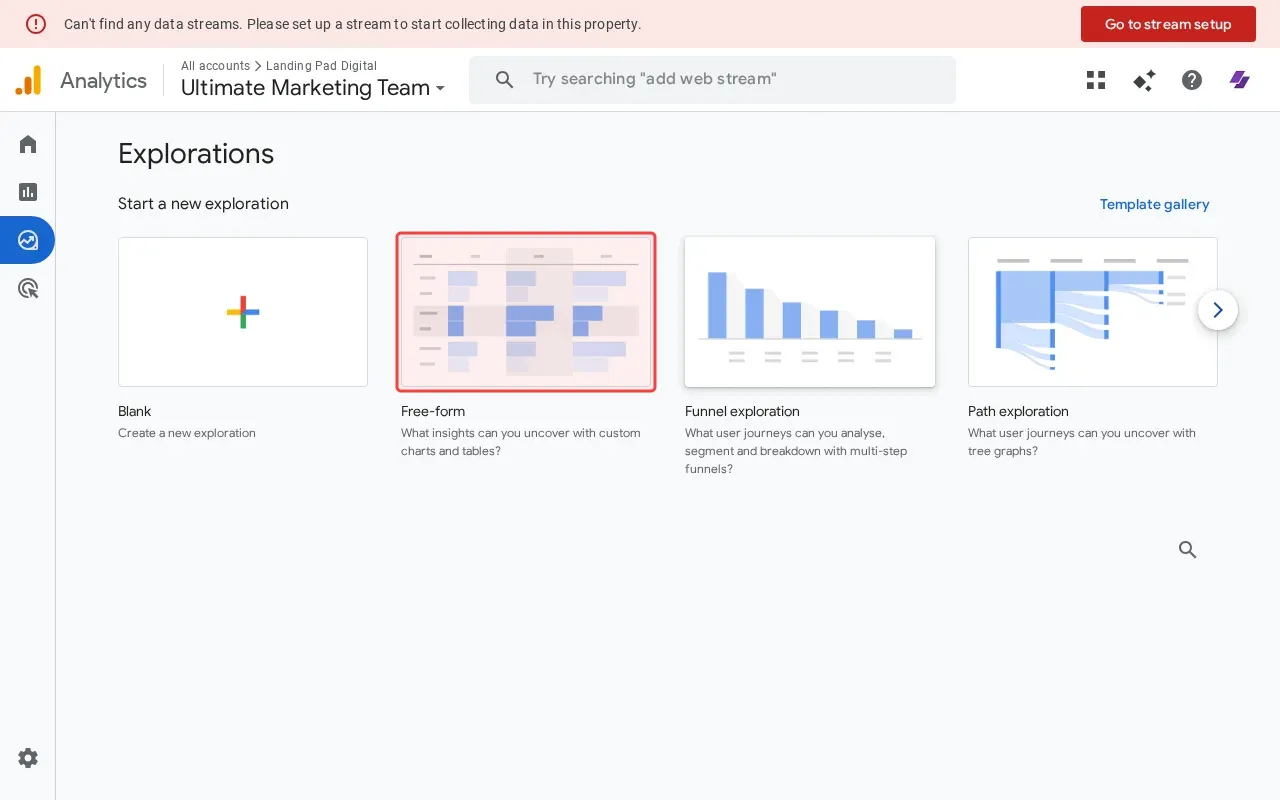
Step 6: Click 'Free-form' template to analyze pages and screens.

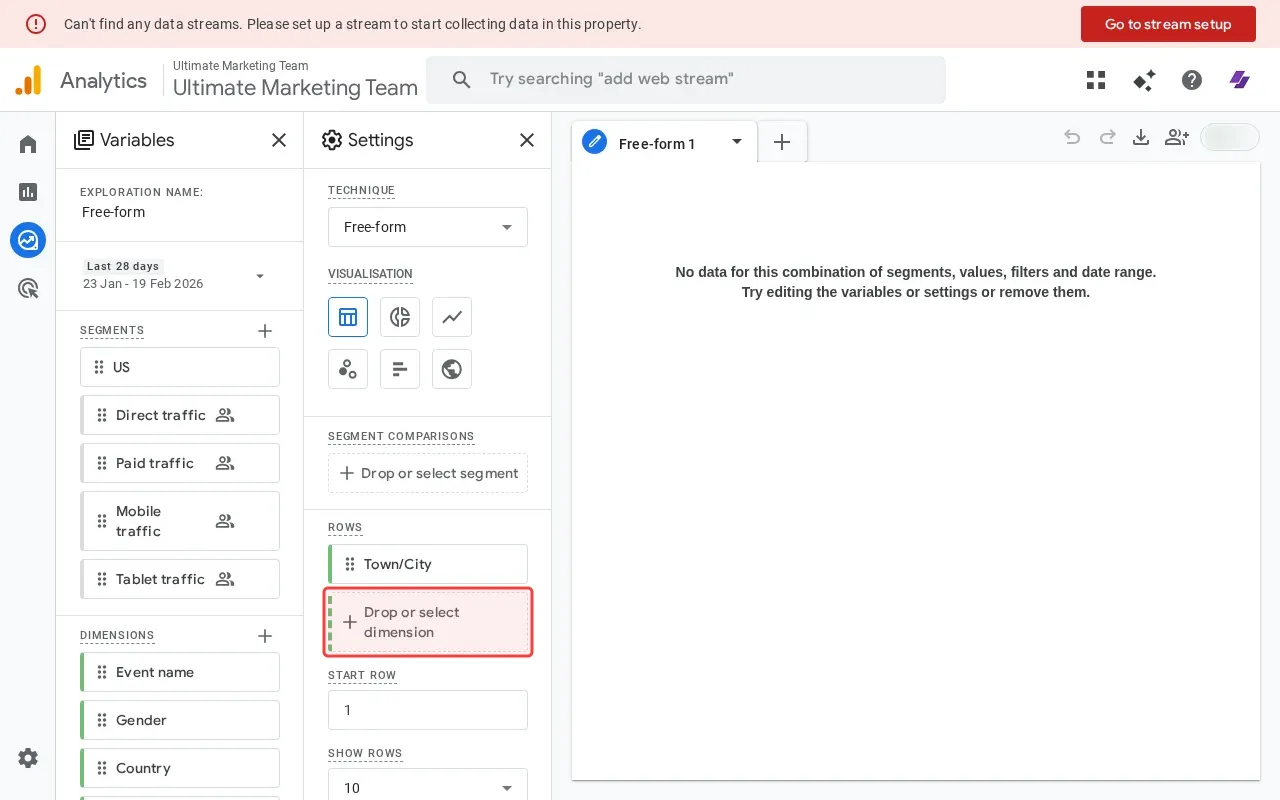
Step 7: Click 'Drop or select dimension' to add pages dimension.

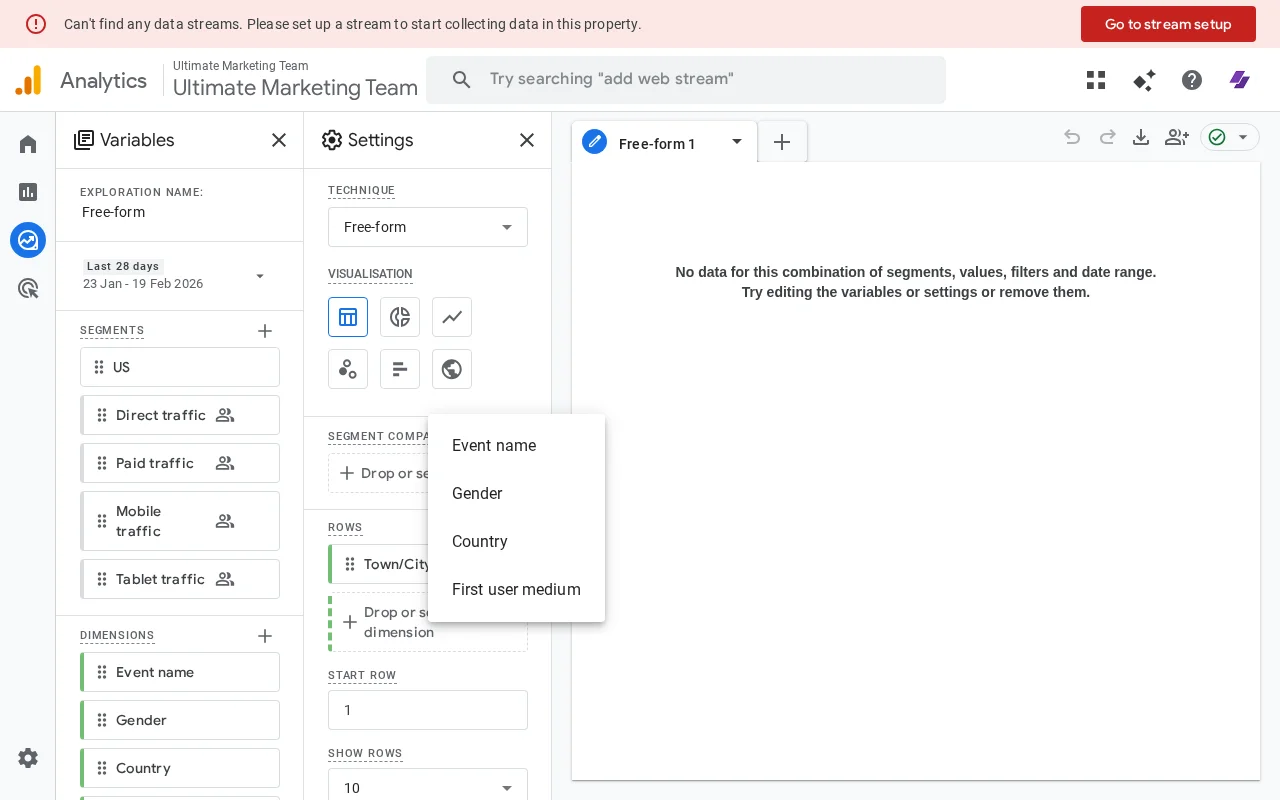
Step 8: Scroll to find page-related dimension options.

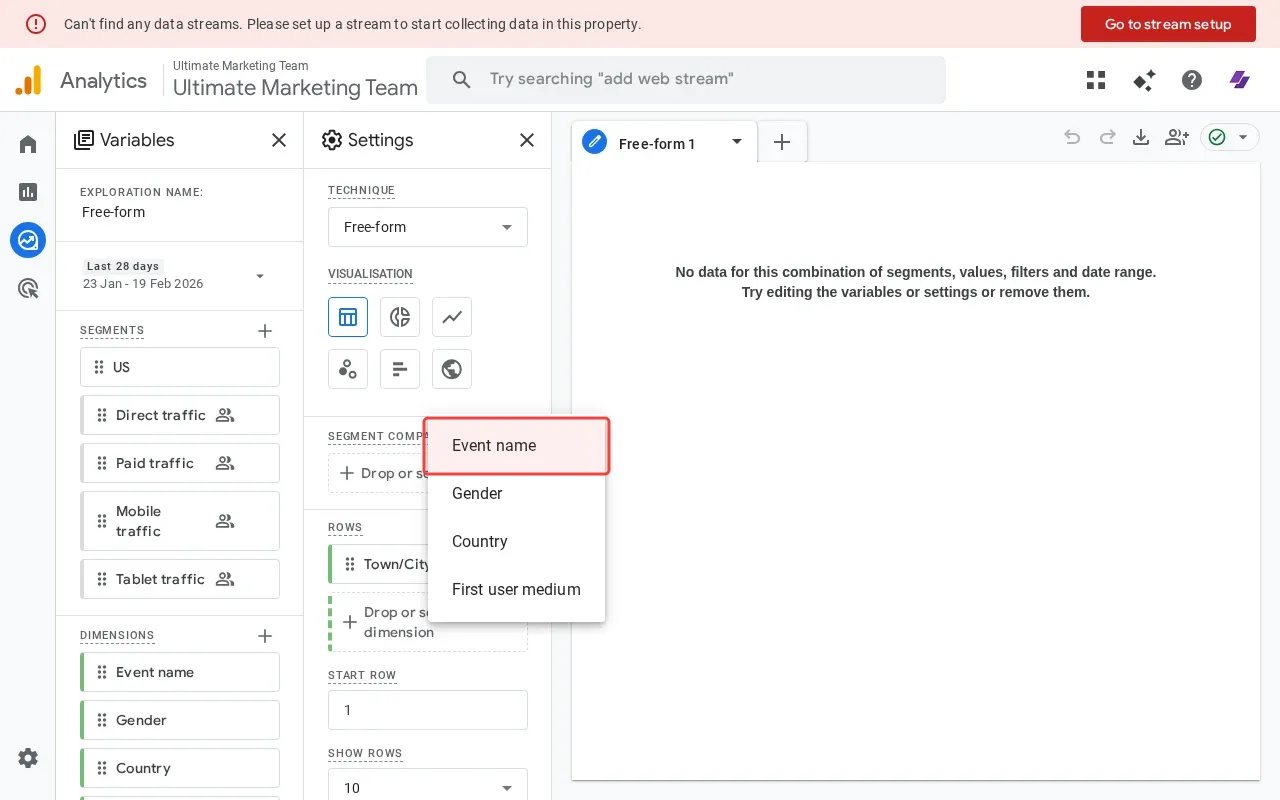
Step 9: Click 'Event name' to select page-related dimension.

Step-by-Step Guide

1

Click 'Reports' in the sidebar to access analytics reports.
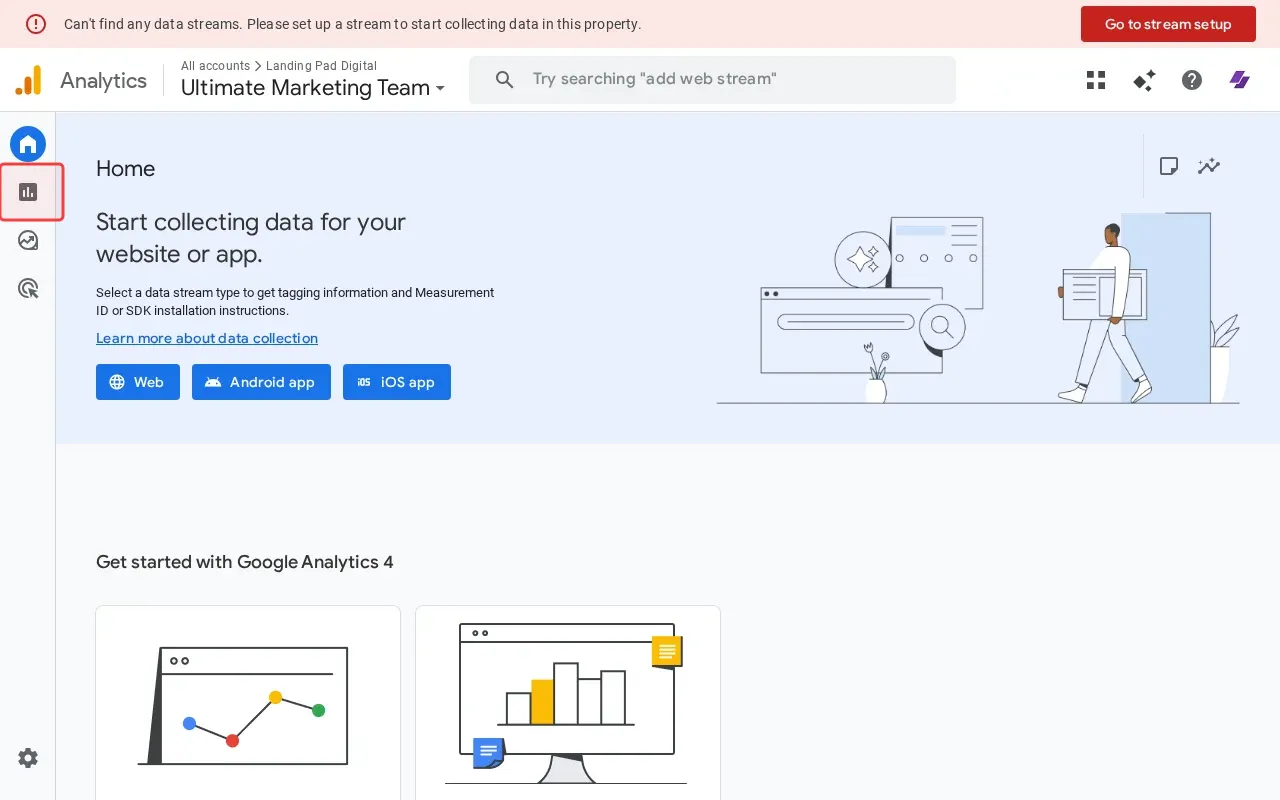
Screenshot showing clicking Reports in the sidebar to access analytics reports
2

Click 'User' to expand user behavior reports section.

Screenshot showing clicking User to expand user behavior reports section
3

Scroll down to find Pages and screens reports option.

Screenshot showing scrolling down to find Pages and screens reports option
4

Click 'Tech' to explore page and screen analytics.

Screenshot showing clicking Tech to explore page and screen analytics
5

Close the welcome modal to access explorations.

Screenshot showing closing the welcome modal to access explorations
6

Click 'Free-form' template to analyze pages and screens.

Screenshot showing clicking Free-form template to analyze pages and screens
7

Click 'Drop or select dimension' to add pages dimension.

Screenshot showing clicking Drop or select dimension to add pages dimension
8

Scroll to find page-related dimension options.

Screenshot showing scrolling to find page-related dimension options
9

Click 'Event name' to select page-related dimension.
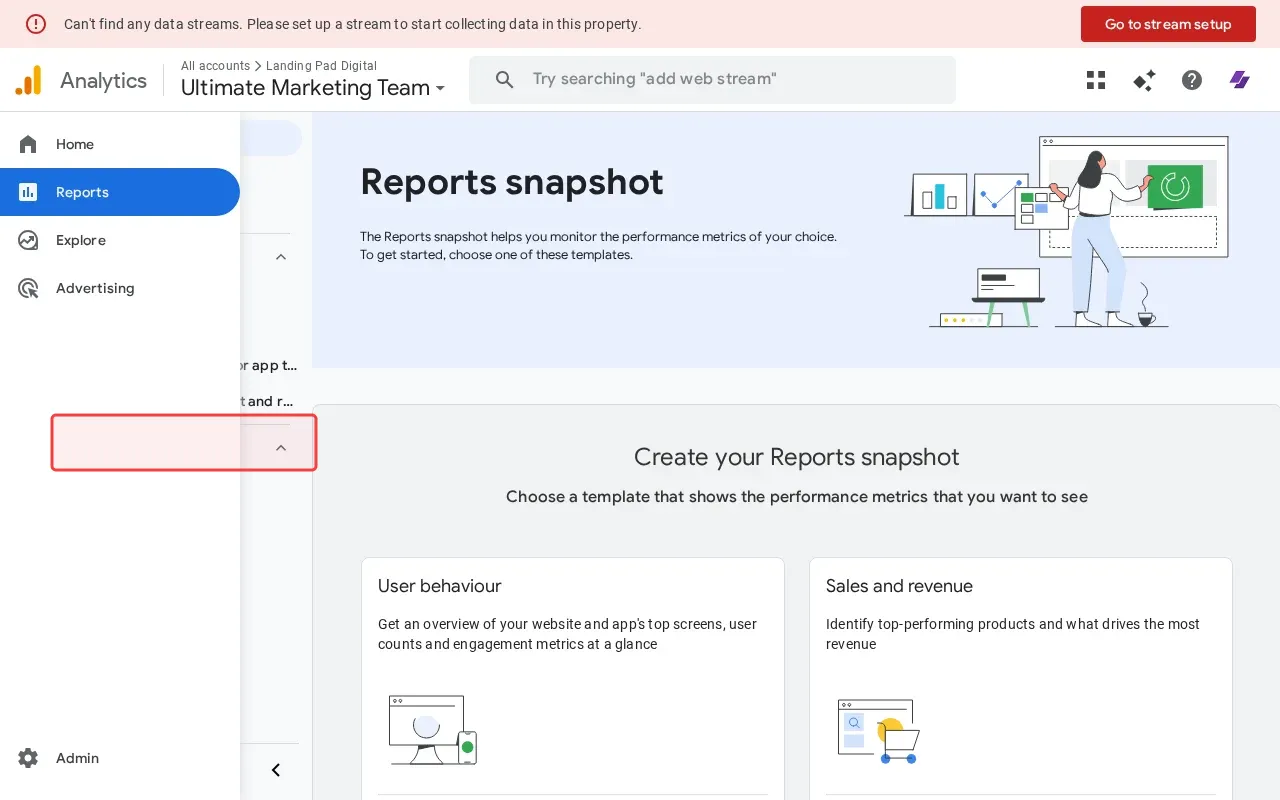
Screenshot showing clicking Event name to select page-related dimension